
Create a new agent
Ask Athena for a new AI employee in one message. In the walkthrough she builds Juno, a briefing assistant, with a portrait, her own Slack app, an access list and a page on the dashboard, then Juno answers questions in Slack.
On this page
Athena can build a new AI employee for your workspace from one request. In this walkthrough she builds Juno for Harbor & Pine, a briefing assistant who sends a morning summary of yesterday's orders, revenue, ad spend and MER and answers questions about those numbers. You choose the name, the job, what the agent must never do and who may use it. Athena does the rest: the portrait, the agent's own Slack app, the access rules, the dashboard entry and the tests. In the demo she took 42 minutes, and nobody had to sign in or click anything along the way.
A master admin asks for this directly. Anyone else asks the workspace's main agent, which checks their access before it hands the request to Athena.
 2. Create a new agent
Ask Athena#
Open #gd-athena-engineering.
Tag @Athena and describe the agent in one message: its name and title, the headshot, who it works for and who else may use it, the job, what it must never do, its Slack app, its dashboard page and what done looks like. The request from the demo:
@Athena create a new agent for Harbor & Pine with the athena-new-agent skill.
Name and title: Juno, briefing assistant. Headshot: generate one in our house style, clearly a different person from our other agents, warm and sharp.
Works for: @Kiki Summers. Also allowed: @Holden Russell. Nobody else.
Job: every morning at 7:00 AM PT, DM me yesterday's orders, revenue, ad spend and MER from the warehouse against the same day last week, and answer our questions about them.
Restrictions: read only; never change ads, prices or the store. She talks only in DMs with us, or when one of us tags her in this channel.
Slack: create and install her own app with her portrait as the icon, and add her to this channel.
Dashboard: show her with her connectors and access list on the dashboard's Agents page.
Done when: she's live, she answers when I tag her in this thread, and anyone else is refused.
Send it. Athena replies in a thread under your request within seconds. Her status message shows the model she is using, the task number, the command she is running, and counts of commands and test runs.
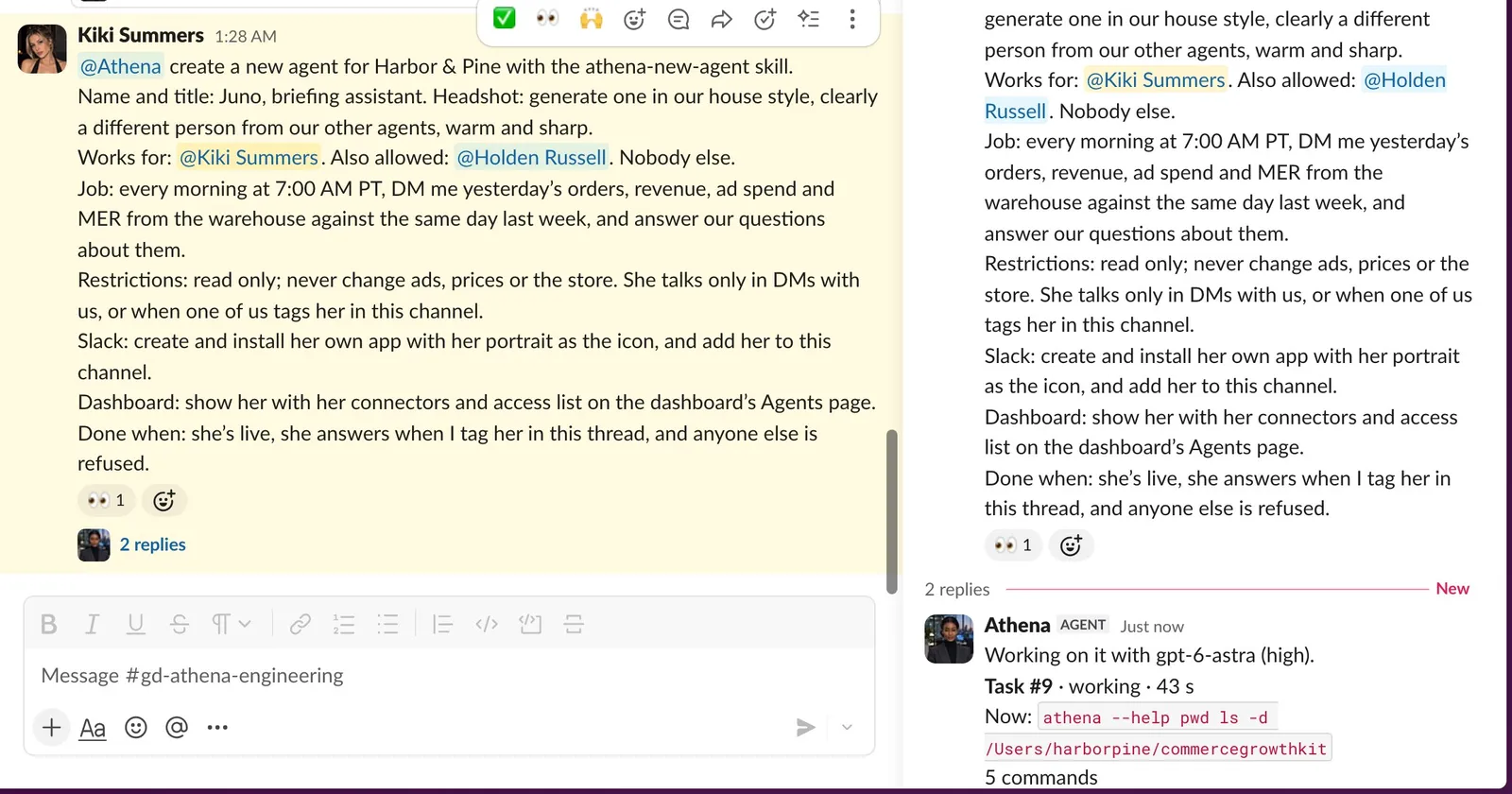
The request for Juno and, in the thread, Athena's status message 43 seconds in.
Follow the build#
Watch the thread. Early on she says how she will build the agent. For Juno, she chose the warehouse P&L pipeline the dashboard already uses, so Juno's figures match the dashboard.
She generates the portrait, limits the agent's tools to what the job needs (for Juno, four reporting tools that read the warehouse, and nothing else) and runs the tests. Each test run gets its own reply.
She creates the agent's own Slack app, installs it with the portrait as its icon and adds the agent to the channels you named. Nobody signs in for this: she uses the workspace admin account Growth Dept set up on your machine.
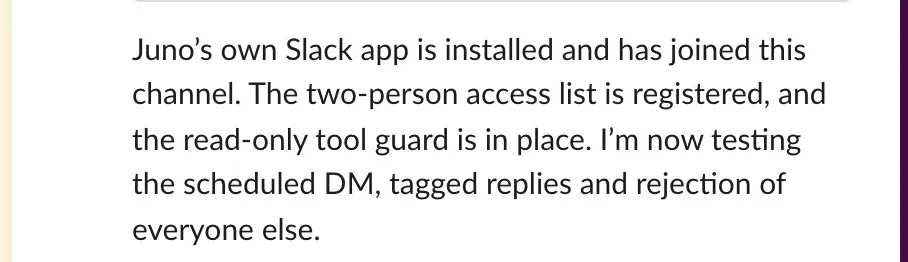
Athena's note: Juno's own Slack app is installed and has joined the channel, the two-person access list is registered and the read-only guard is in place. She tests the agent live before she calls it done. For Juno she tagged her with a test question in the thread, sent the morning briefing to Kiki's DM and checked that someone off the access list is refused.
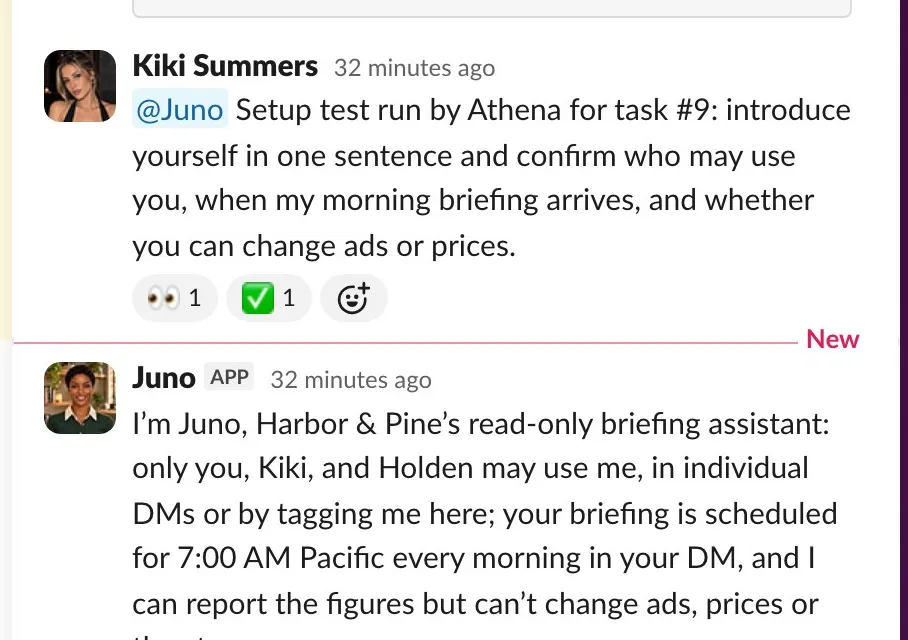
Athena's test question, posted through the workspace admin account, and Juno's answer: who may use her, when the briefing arrives, and that she can't change ads or prices.
Read her answer#
When she finishes, the status message says done. Building Juno took 42 minutes and 129 commands.
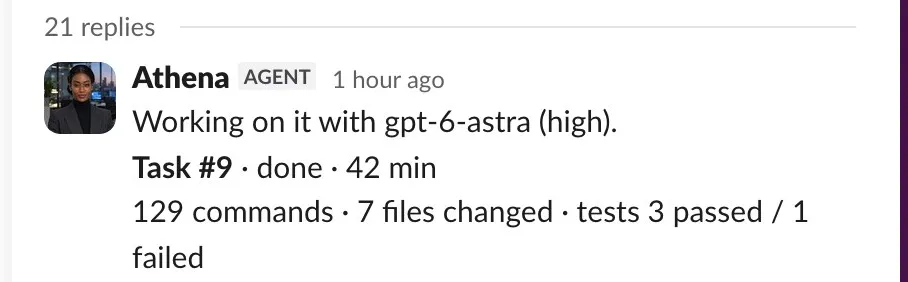
The status message at the end: task #9, done in 42 minutes, 129 commands, 7 files changed. Her answer tags you and says where things stand: Juno is live, only Kiki and Holden may use her, the briefing goes out at 7:00 AM Pacific, and she can read the numbers but can't change ads, prices or the store. It also lists the checks she ran (81 tests and the live checks) and links the agent's dashboard page.
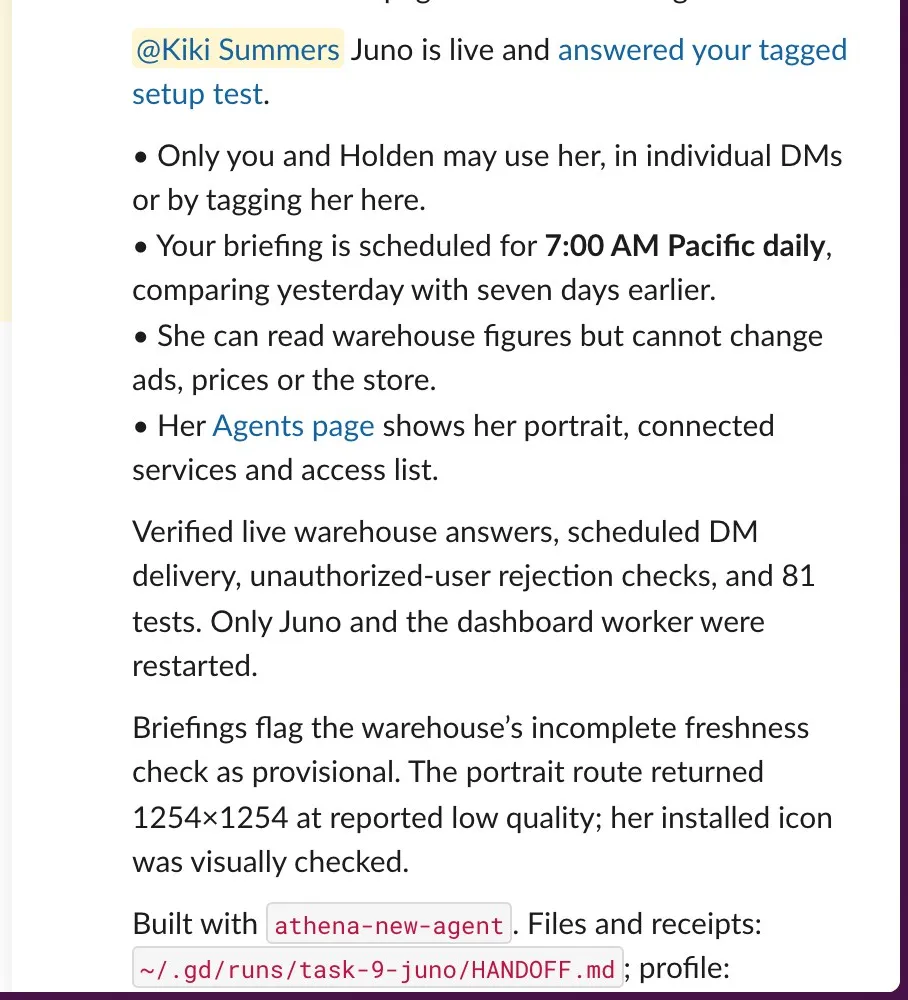
Athena's answer, with the access list, the briefing schedule, the read-only limit and the checks she ran.
Talk to the new agent#
Tag the new agent in the channel with a real question. Juno answers in a thread under it, from the warehouse.
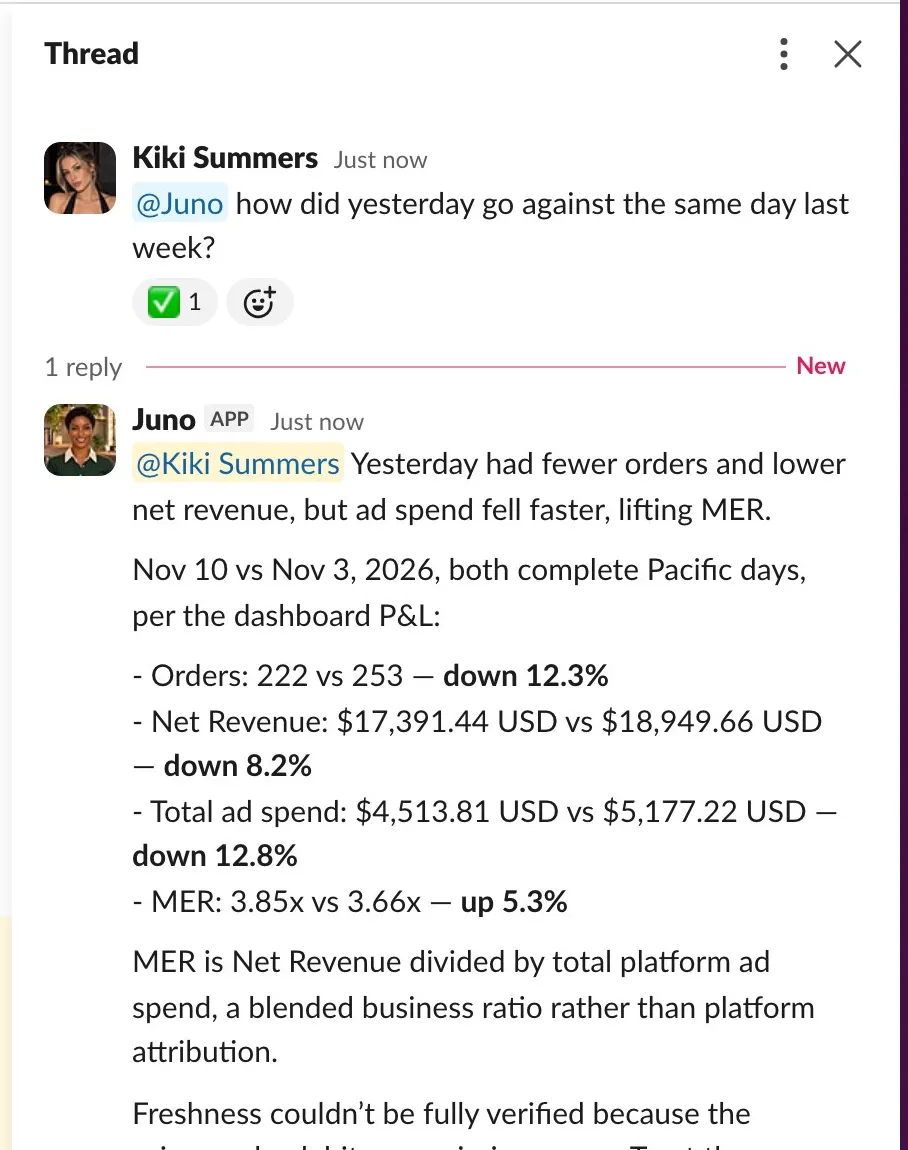
Kiki's question and Juno's answer in the thread under it, from the dashboard P&L: orders, net revenue, ad spend and MER for Nov 10 against Nov 3, with the change for each. If the agent doesn't answer the way you asked, reply in Athena's thread, tag her and paste the link to the message that went wrong. In the demo, Juno's first answers to a tagged question in the channel came back empty, although her direct messages worked. Athena traced it and fixed it in a follow-up in the same thread.
Check the new agent on the dashboard#
Open the dashboard's Agents page. The new agent appears only for the people on its access list.
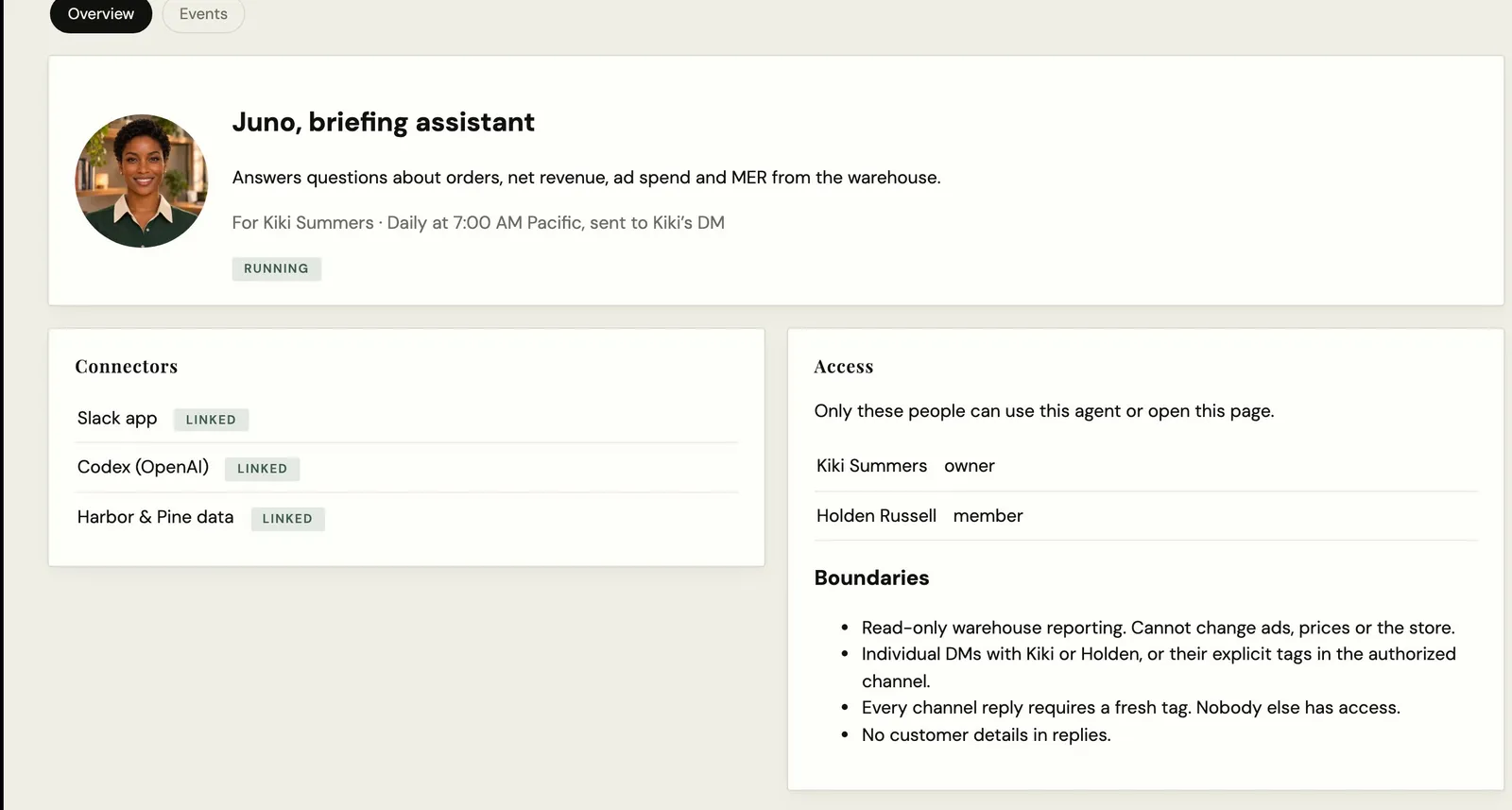
Open the agent's page and check the portrait, the job and schedule, each connector and whether it is linked, the access list and the boundaries.
Juno's page: portrait, job and schedule, her Slack app, Codex and Harbor & Pine data linked, the access list (Kiki owner, Holden member) and her boundaries.
Related
- Getting started with AthenaAthena is the engineer in your Slack. Ask her to fix a report that errored or to build a new report, dashboard or agent, and follow the work in one Slack thread.
- Build a store health report in SlackAsk Athena for a new daily Slack report. In the walkthrough she builds Store Health 2.0, with conversion rate on a 30-day chart, the day's errors and checkout drop-off, notes for launches and site changes, and landing-page tests proposed from Clarity.
- Build a KPI dashboard for your teamAsk Athena for a dashboard your team checks every day. In the walkthrough she adds Organic social and Paid tabs to Harbor & Pine's brand dashboard, behind its sign-in, with every source and date range labeled.
- Fix a scheduled report that erroredWhen a scheduled report fails, paste the link to the agent's error message into #gd-athena-engineering. Athena finds the cause, fixes it, runs the tests and reruns the report so you can see it post.
Still stuck?
Email the Growth Dept team. Say which workspace you work in and what you were trying to do.