
In this guide
The video series#
Five short videos cover Athena: a first look, then four walkthroughs recorded in Harbor & Pine, Growth Dept's demo workspace. Each walkthrough also has its own article with the steps written out and screenshots from the same session. A video that is still being prepared says so here and appears once it is published.
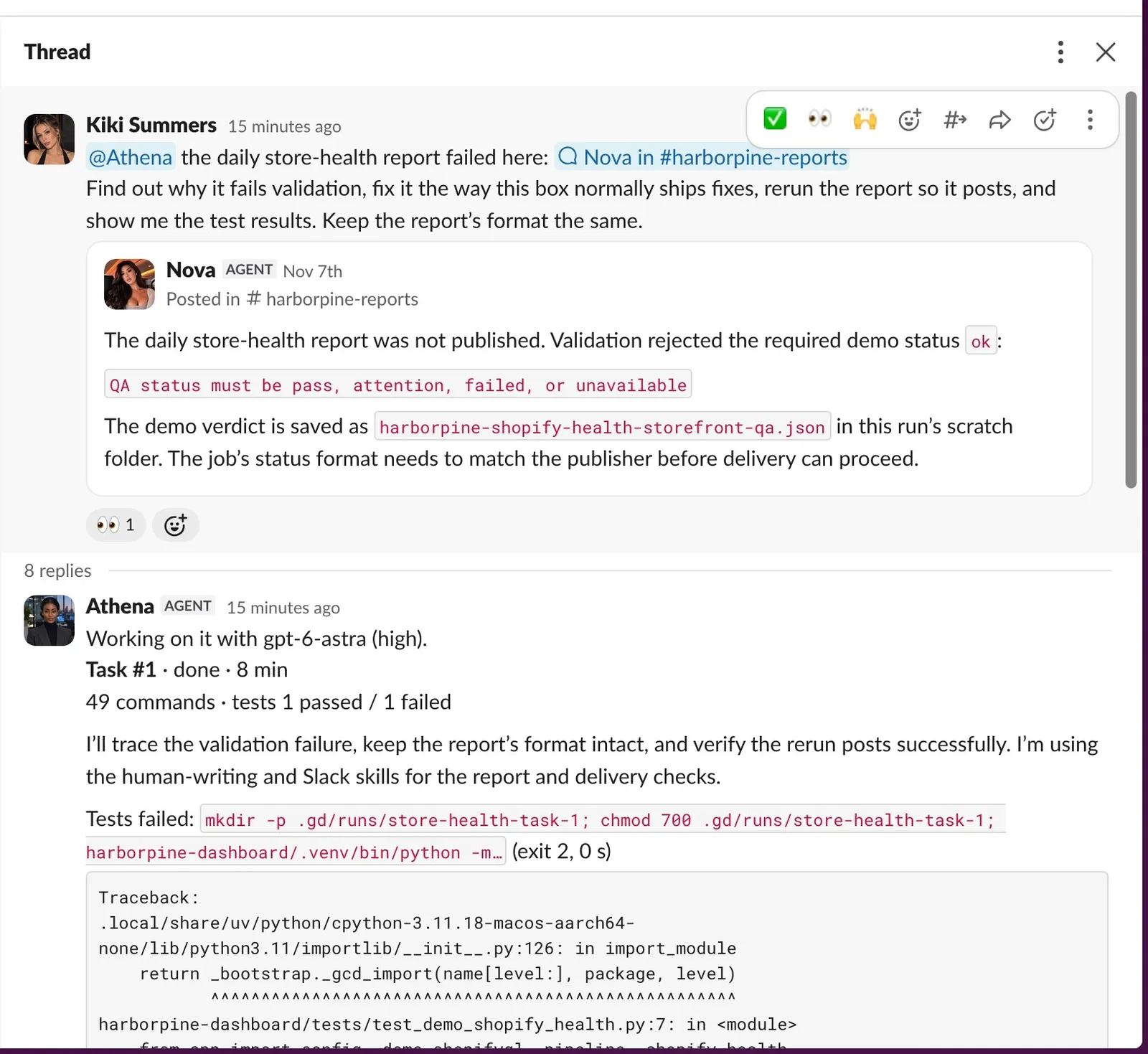 1. Meet Athena
. Who can ask Athena for work, what to put in a request, what she posts in the thread while she works, and how to stop her.
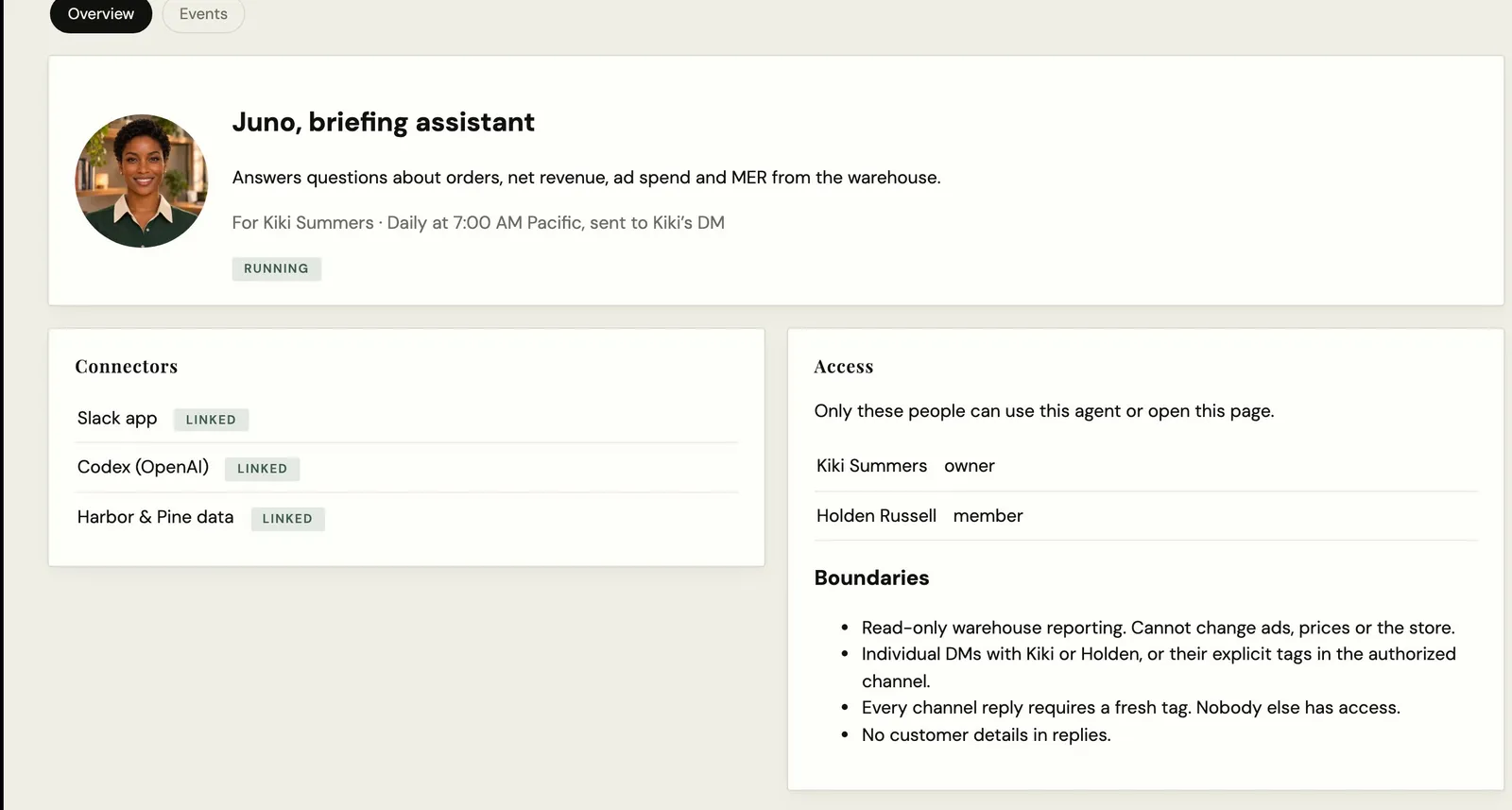 2. Create a new agent
. One request, and Athena builds Juno, a briefing assistant: her portrait, her own Slack app, read-only warehouse tools, an access list of two and a page on the dashboard. Then Juno answers in Slack.
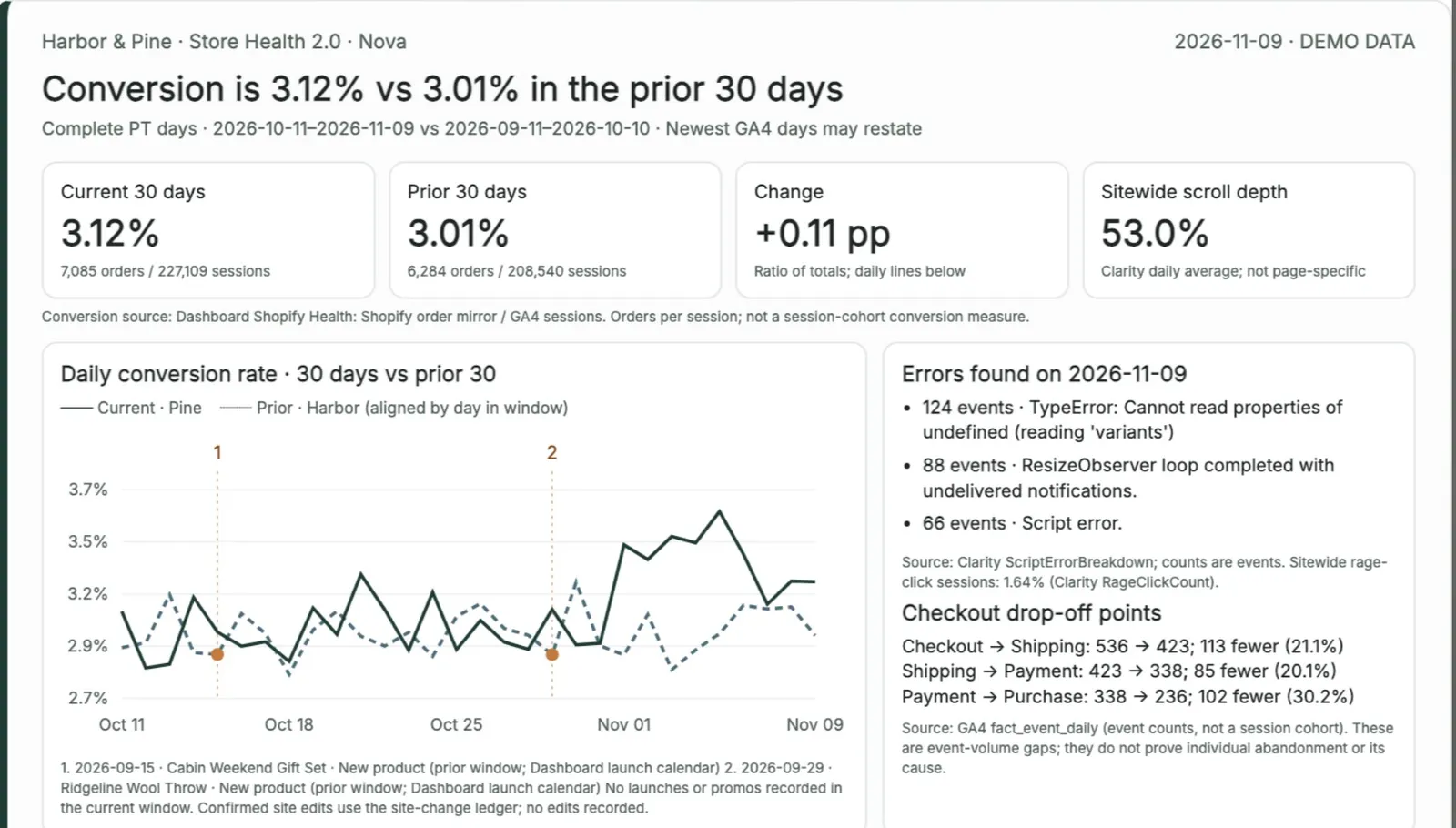 3. Build a new Slack report
. Store Health 2.0, laid out like the Meta optimizer's cards: conversion rate on a 30-day chart, the day's errors and checkout drop-off, launch notes and landing-page tests proposed from Clarity.
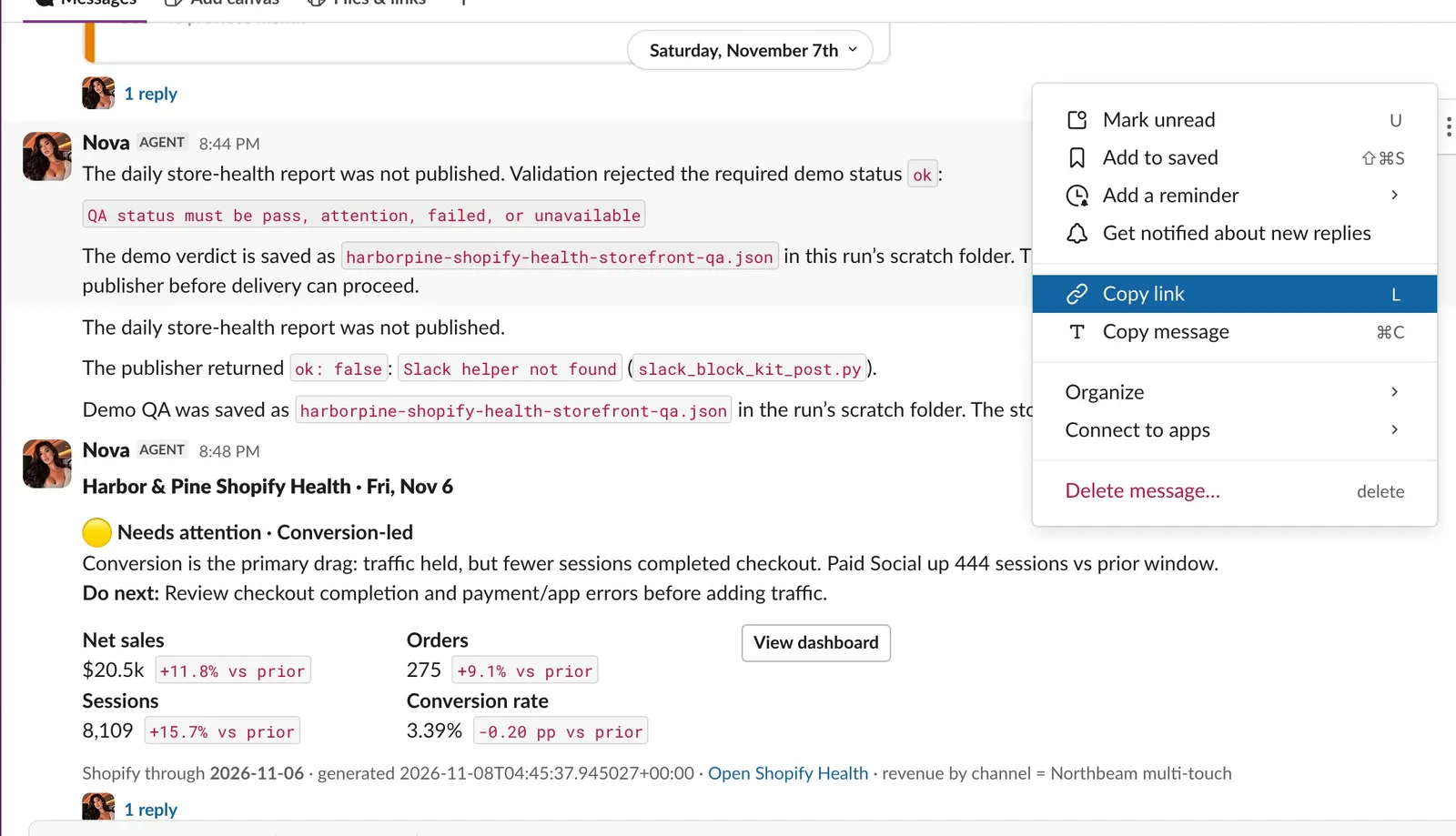 4. Fix a report that errored
. Pasting the link to a failed store-health report into #gd-athena-engineering, then following Athena's fix through the tests to a report that posts again.
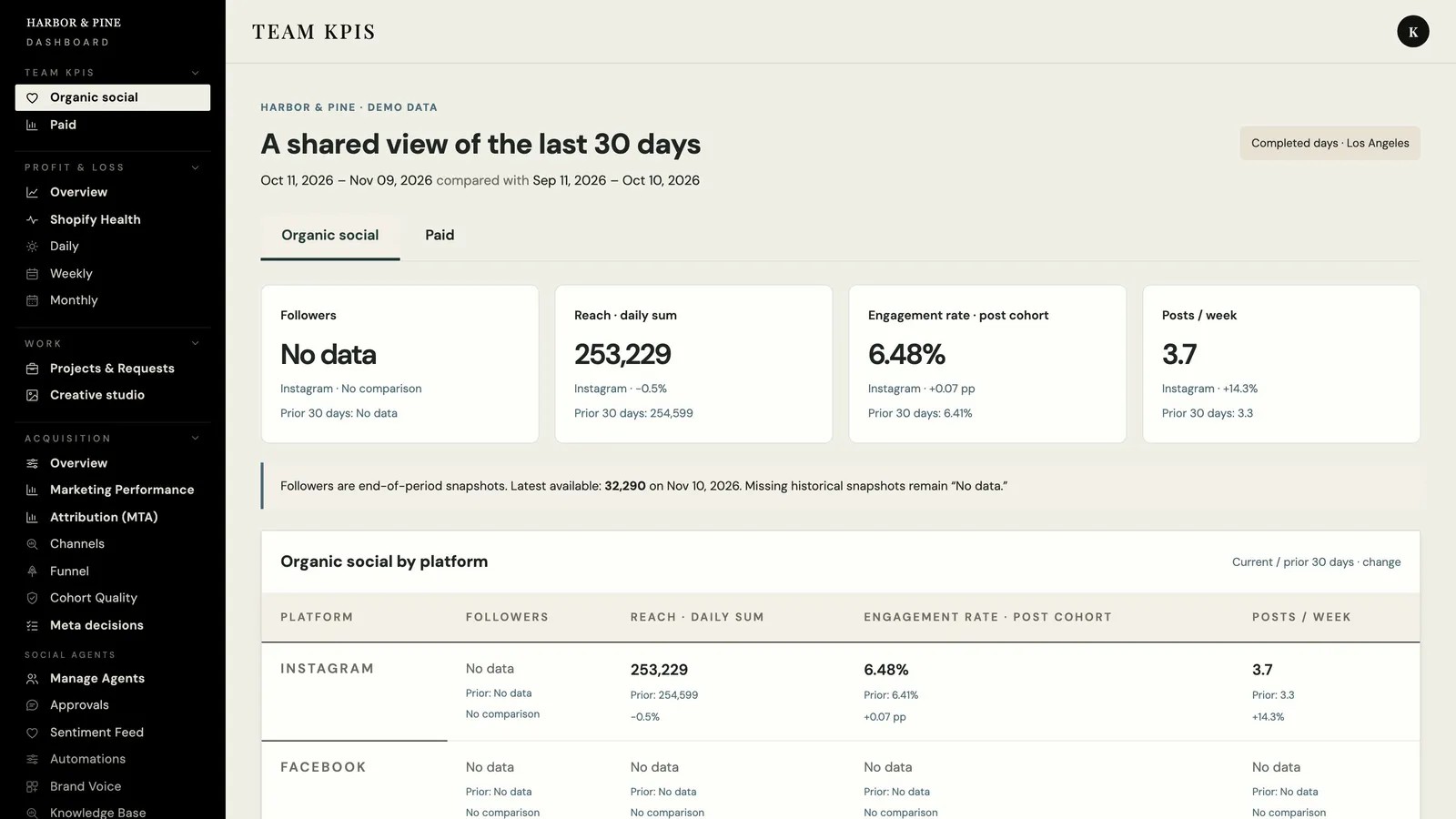 5. Build a KPI dashboard for your team
. An Organic social tab and a Paid tab with spend, ROAS, CTR and store profit by platform, inside the brand dashboard and behind its sign-in.
What Athena is#
Athena is Growth Dept's Chief Software Architect for your workspace. She is a Slack bot backed by Codex, OpenAI's coding agent, and she works on your workspace's own machine with the same access an engineer has at its terminal.
You can ask her to:
fix a report or scheduled job that errored
change how one of your AI employees is set up
build a new report, dashboard or agent
She tests each change, ships it the way your machine normally ships changes, and posts her progress in Slack as she goes.
1. Meet AthenaWho can ask her#
Master admins ask Athena directly. Her introduction message in #gd-athena-engineering names them.
Everyone else asks your workspace's main agent, the AI employee you already work with. That agent checks whether you may ask for the work and, if you may, hands it to Athena with your name on it. If you tag Athena yourself and you are not a master admin, she replies that she takes direct requests only from master admins and points you to the main agent.
How to ask#
Tag @Athena in #gd-athena-engineering with what you need. You can also tag her in the thread where something went wrong, or send her a direct message. She joins public channels on her own; a private channel needs her invited first.
She keeps no memory between tasks, so put the whole story in the request:
what is wrong, or what should exist when she is done
where it lives: the report, dashboard, agent or scheduled job, and the channel it posts in
the exact error, and when it started
what you or anyone else already tried
what done looks like, and how to check it: the job runs clean, the report posts, the tests pass
the link to the Slack message where it happened. She reads the whole thread before she starts.
This request from the demo is short because the linked message carries the error:
@Athena the daily store-health report failed here: <link to the failed message>
Find out why it fails validation, fix it the way this box normally ships fixes, rerun the report so it posts, and show me the test results. Keep the report's format the same.What you see while she works#
Athena answers in a thread under your request, so anyone in the channel can follow along:
a status message at the top, updated as she works: the model she is using, the task number, how long she has been at it, the command she is running, and counts of commands and test runs. It says done when she finishes.
short notes on what she finds and what she checks next
a reply for each test run, saying whether it passed, with the end of the output
a Shipped line when she commits code
her answer when she finishes. It tags the person who asked and says what was wrong or what she built, what she changed, the checks she ran, how she shipped it, and anything a person still has to do.
Passwords, keys and customers' personal details are removed from everything she posts.
Adding detail or stopping her#
To add detail while she works, reply in her thread. She folds the new message into the work in progress. After she finishes, a reply in that thread picks the conversation up where it stopped, so you do not need to repeat the background.
To stop her, reply in her thread with @Athena /stop: type @Athena, pick her from the list, then /stop. She reacts with a stop sign and confirms in the thread. @Athena /status in the thread shows what she is working on and what is waiting.
From the channel's message box, not a thread, use /athena stop (or /athena stop 12 for task #12) and /athena status. Only you see her answer to those, and only master admins can use them. Slack runs a slash command only at the start of a message and never in a thread, which is why the thread form starts with her name.
How agents hand her work#
Your AI employees can pass Athena work they cannot finish themselves, such as a scheduled job that keeps failing or a broken connection to another tool. They give the same context a person would, plus two lines:
@Athena <what is needed, with the context above>
<link to the Slack thread>
Requested by: @person
Access: <the access rule the agent checked>
Requested by names the person the work is for. Access says which rule lets that person ask for it. The agent adds it when the person is not a master admin, and Athena records it. The agent makes the access decision for the people it works for and hands over only work they could ask it for directly.
Athena refuses an agent's request that has no thread link and little context, with a note on what to add. Agents on your machine can also queue work for her without Slack; it still opens a thread in her channel, and she mentions the person and the agent when she finishes.
What needs a person#
Athena does every step the machine's own access allows. That includes a new agent's Slack app: she creates it, installs it and adds the agent to its channels herself, through the workspace admin account Growth Dept set up on your machine. She stops only at a step that truly needs a person, such as a Google consent for a mailbox the machine has never connected (only someone who can sign in to that mailbox can give it), a device or passkey prompt, a payment, or a choice only you can make. She finishes everything else first and says exactly which step is left and who can do it.
When a task needs more than the person asking is allowed, she stops and says what a master admin has to approve. That includes credentials, money, another brand's data, customers' personal data, messages to customers, and changes to ads or prices.
Even on a master admin's request, she sends messages to customers, changes live ads, budgets or prices, or moves money only when the request asks for exactly that. Before a change that would delete data or settings, she makes a backup and says where it is.
Limits#
She works on two tasks at a time unless your machine is set otherwise. Other requests wait their turn;
/athena statusin the channel shows the queue.Each task has a time limit, four hours unless your machine is set otherwise. A task that reaches it stops and says so in the thread.
She reads a private channel only after someone invites her.
She runs on your machine's Codex account. When that account reaches its usage limit, tasks fail with Codex's own message; ask again after the limit resets.
Walkthrough: create a new agent#
Juno is a briefing assistant who sends Kiki a morning summary of yesterday's orders, revenue, ad spend and MER and answers questions about those numbers. From one request, Athena built her in 42 minutes: the portrait, her own Slack app (created and installed by Athena), the access rules for two people, read-only warehouse tools, the morning schedule and her page on the dashboard. She tested Juno live before she called it done.
2. Create a new agentFull steps: Create a new agent
Walkthrough: build a new Slack report#
Store Health 2.0 is a daily card laid out like the Meta optimizer's cards: conversion rate on a 30-day chart, the day's errors and checkout drop-off, notes for launches and site changes, and landing-page tests proposed from Clarity. In 20 minutes Athena posted a sample card in the thread and scheduled the report for 8:00 AM Pacific.
3. Build a new Slack reportFull steps: Build a store health report in Slack
Walkthrough: fix a report that errored#
Harbor & Pine's daily store-health report failed validation. A master admin pasted the link to the failed message into #gd-athena-engineering, and eight minutes later Athena had found the cause, fixed it, passed the tests and rerun the report.
4. Fix a report that erroredFull steps: Fix a scheduled report that errored
Walkthrough: build a KPI dashboard#
In 15 minutes Athena added an Organic social tab and a Paid tab to the brand dashboard, behind its sign-in. Every source and date range is labeled, and the tabs show "No data" wherever the demo has no source.
5. Build a KPI dashboard for your teamFull steps: Build a KPI dashboard for your team
All Athena articles
- Create a new agentAsk Athena for a new AI employee in one message. In the walkthrough she builds Juno, a briefing assistant, with a portrait, her own Slack app, an access list and a page on the dashboard, then Juno answers questions in Slack.
- Build a store health report in SlackAsk Athena for a new daily Slack report. In the walkthrough she builds Store Health 2.0, with conversion rate on a 30-day chart, the day's errors and checkout drop-off, notes for launches and site changes, and landing-page tests proposed from Clarity.
- Fix a scheduled report that erroredWhen a scheduled report fails, paste the link to the agent's error message into #gd-athena-engineering. Athena finds the cause, fixes it, runs the tests and reruns the report so you can see it post.
- Build a KPI dashboard for your teamAsk Athena for a dashboard your team checks every day. In the walkthrough she adds Organic social and Paid tabs to Harbor & Pine's brand dashboard, behind its sign-in, with every source and date range labeled.
Still stuck?
Email the Growth Dept team. Say which workspace you work in and what you were trying to do.